GPT Image 2.6
Explore GPT Image 2.6 for faster ideas, focused edits, and expressive characters. Turn a brief or reference image into a visual direction worth developing. Animate a mascot or product with a short, expressive GIF loop.
What is GPT Image 2.6?
GPT Image 2.6 is OpenAI’s image generation and editing model for campaign artwork, product scenes, and characters. Alongside text and image inputs, its GIF capability brings mascots, reactions, and storyboard gestures into motion. API controls cover marked-up edits, SVG output, planning complexity, and image quality.
Key Features of GPT Image 2.6
Move from a first concept to a coherent set of visuals, with more control over each creative decision.
Explore visual directions faster
GPT Image 2.6 is reported to generate images about 50% faster than before. Its API Flare variant can reach roughly six seconds at low quality. Start with a campaign brief, compare compositions, and reserve detailed refinements for the direction you choose; these timings are not a per-request guarantee.
Draft a visual direction
Bring characters to life with animated GIFs
GPT Image 2.6 brings motion to mascots, reactions, and animated storyboards. Start with a sketch or character reference, describe one clear gesture, and keep the viewpoint fixed for a smooth loop. Play the example to see a monkey holding a lantern and blinking outside a snowy cabin, with the motion returning to its starting pose.
Develop a character concept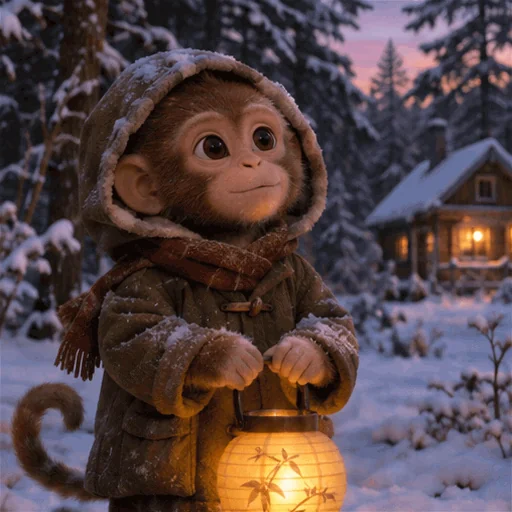
Carry details through revisions
A product or character should remain recognizable as its setting changes. GPT Image 2.6 Sunburst emphasizes detail and consistency across edits at medium or high quality. Supply the approved reference, identify the change, and specify the shape, palette, and identity details to preserve for your next campaign variation.
Refine a reference image

Point to the exact detail to change
Image markup in the API makes a local request easier to locate. Circle a target, explain the replacement, and describe what must stay. The GPT Image 2.6 example recolors a marked vase while keeping the kitchen recognizable, a useful approach for reviewing props, packaging, or interior details.
Plan a focused edit

Develop designs for scalable delivery
The GPT Image 2.6 API supports SVG export for designs used across screens and print. Begin with a simple silhouette, readable lettering, and a clear hierarchy. The bakery logo preview illustrates the kind of graphic direction to develop before inspecting the exported vector artwork in a design editor.
Explore a graphic concept
Separate scene planning from finish
In the API, complexity controls planning effort while quality controls visual fidelity. A quick local edit can use low complexity; a diagram with many relationships may benefit from medium or high. For GPT Image 2.6 briefs, list essential labels, spatial relationships, and constraints before refining the final appearance.
Compose a detailed brief
Start a GPT Image 2.6 creative workflow
Bring a clear reference and build your next version one decision at a time.
Choose your starting point
Image to Image is selected first. Upload your reference or enter an image URL; switch to Text to Image to start from a written brief.
Describe the change
Choose an available model and its settings. Explain the subject, intended use, and details to retain. Check the displayed credit cost before submitting.
Review the next version
Inspect the image, download the version you prefer, and upload it as a new reference for another focused edit. Check text and small details before publishing.
GPT Image 2.6 Use Cases
Connect an initial brief or reference to a concrete creative deliverable.
Seasonal product campaigns
Start with an approved product photo. Explore new lighting and seasonal settings while keeping packaging details in view, then select a consistent group of visuals for a launch.
Animated GIFs for social campaigns
Turn a mascot reference into a blinking reaction or a welcoming gesture with GPT Image 2.6. Describe a short loop with a clear beginning and return pose to create GIF ideas for social posts, animated stickers, and seasonal brand messages.
Client revision rounds
Use the latest approved image as the reference. Identify a specific prop, color, or background change so reviewers can compare successive versions against the same visual direction.
Posters and campaign layouts
Provide the message, audience, and required headline. Develop a balanced composition with space for the copy, then check spelling and hierarchy before adapting it to campaign formats.
Instructional diagrams
List the parts and relationships a learner needs to understand. Build a visual explanation, then verify every label and connection before adding the result to a lesson or presentation.
Storyboards and scene studies
Define the character, setting, and action for each beat. GPT Image 2.6 helps explore a coherent sequence of ideas before a team commits to illustration or animation production.
Creator Stories with GPT Image 2.6
 MayaVisual designer · Campaigns
Our seasonal concept kept the product at the center. Changing the setting made it much easier to compare different campaign moods with the same visual anchor.
 LeoIllustrator · Characters
A small expression gives a mascot so much personality. I like exploring a simple gesture before building a whole story around the character.
 NinaDesigner · Branding
The focused revisions fit the way I work: settle the composition, refine a prop, then tune the colors. Each review has a clear purpose.
GPT Image 2.6 FAQ
Understand the model’s capabilities and prepare your next image request.
What is new in GPT Image 2.6?
The release combines faster generation with more controlled editing, GIF support, and new API options. GPT Image 2.6 includes Flare for speed and Sunburst for detailed work and consistency across revisions.
Can GPT Image 2.6 turn a sketch or mascot into a GIF?
Yes. GPT Image 2.6 supports GIF workflows for characters, reactions, and storyboard motion. Describe the action, consistent appearance, camera position, and how the end reconnects to the beginning of the loop.
How do quality and complexity differ?
In the GPT Image 2.6 API, quality governs detail and fidelity, while complexity governs planning effort. Low complexity suits many focused edits; a scene with several interacting constraints can call for more planning.
How can I keep successive edits consistent?
Use the approved result as your next reference and request a specific change. Repeat the details that should remain, including subject identity, proportions, palette, and viewpoint. Review each version before continuing.
How do credits work on Seevio AI?
The selected model and settings determine the displayed credit cost. Sign in to check your balance, adjust the available parameters, and review the updated cost before you submit an image request.
Explore More AI Models
Shape your next idea with GPT Image 2.6
Bring a reference, choose a clear direction, and turn your creative brief into the next image worth refining.
Start with your image