Image Upscaler
Enhance an image and review a clearer-looking version with Seevio’s image restoration tool.
Upload an image to enhance its quality and resolution
Click to upload or drag & drop
jpeg, png, webp, bmp, tiff, gif
Free when signed in. No credits are used.
Smart Enhancement Features
- ✓Intelligent 2x resolution upscaling
- ✓Advanced face restoration & enhancement
- ✓Background clarity & sharpness boost
- ✓Professional noise reduction with detail retention
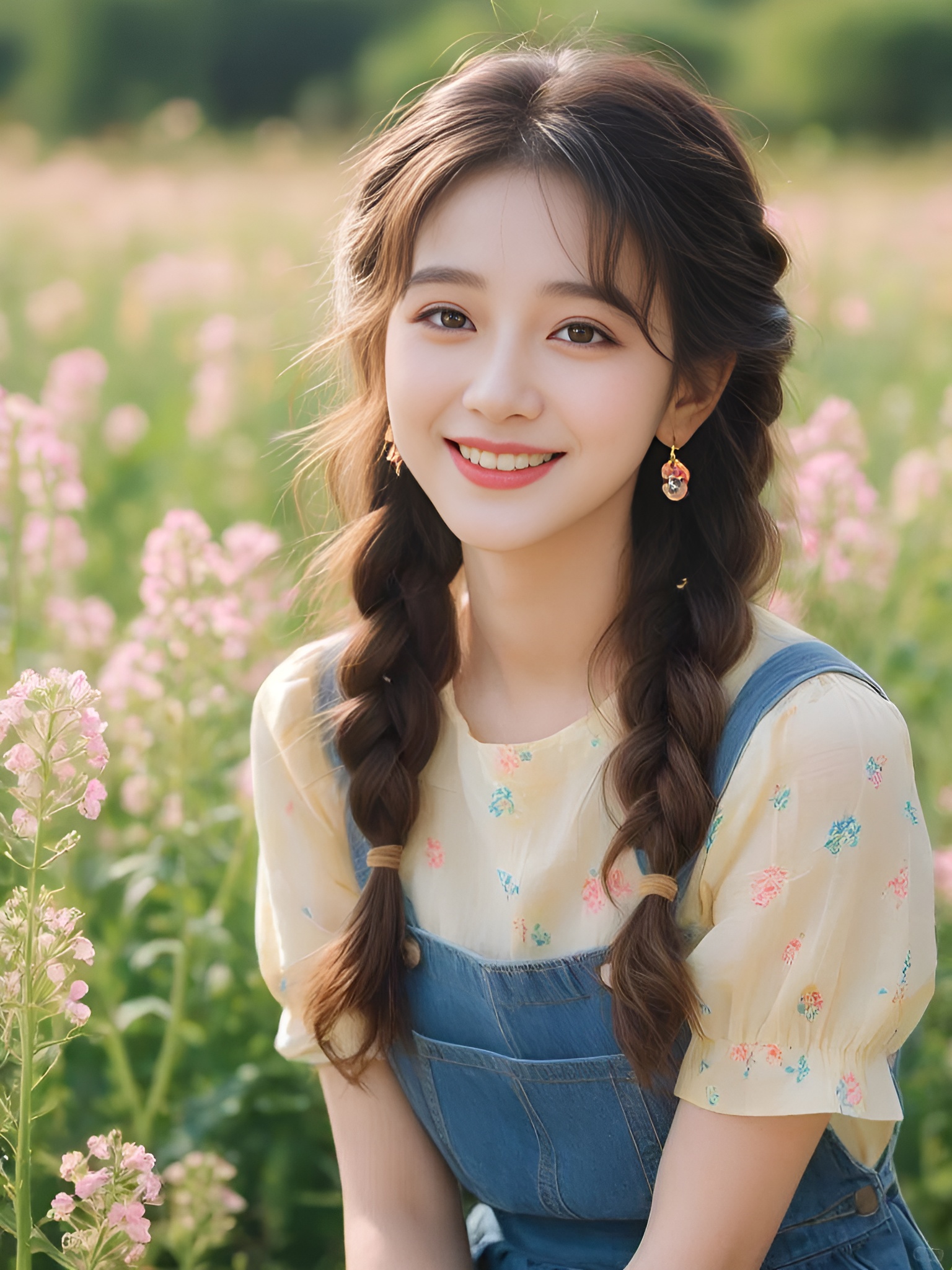
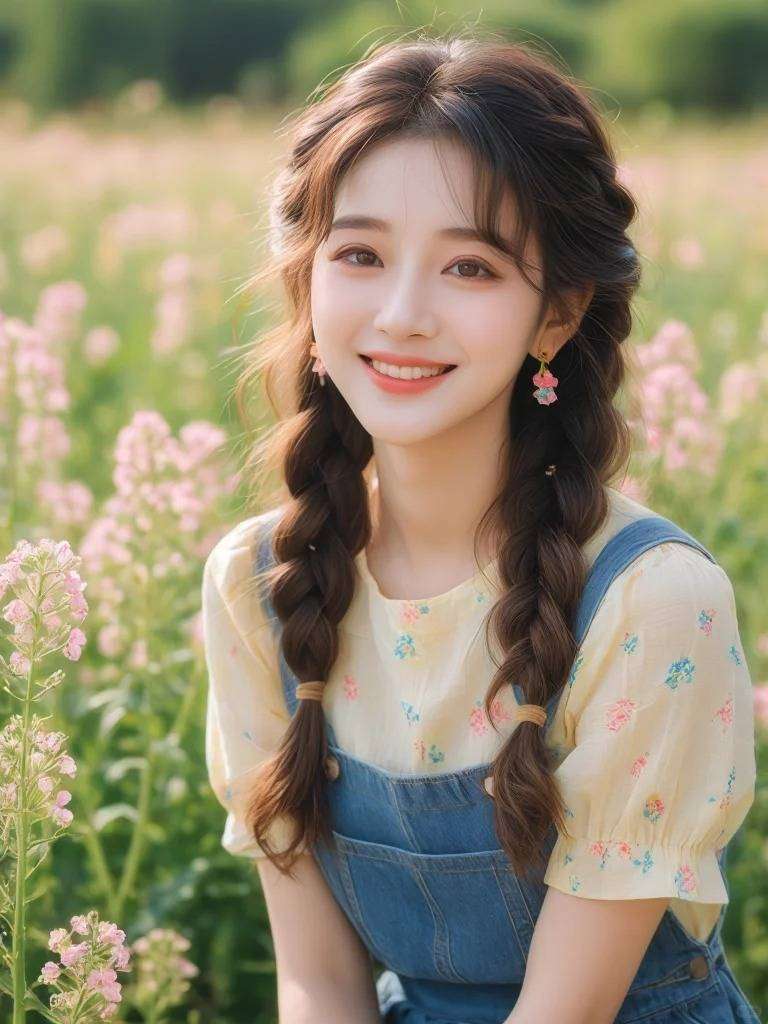
What is Image Upscaler?
Seevio’s current image enhancer uses CodeFormer for image restoration, with a focus on facial detail. Treat it as an enhancement workflow: a fixed enlargement factor or exact detail recovery is not guaranteed.
Key Features of Image Upscaler
Explore image restoration and compare the details before downloading.

Restore the appearance of facial detail
Process a soft or degraded portrait to explore a more defined result. Restoration can reconstruct features, so compare the face carefully with the original.

Compare before you choose
Keep your source image and inspect the generated version. Pay attention to identity, texture and any reconstructed detail before deciding which image to use.

Upload, enhance and download
Use a file or image URL, follow the processing state and download the result. Keep the process focused on evaluating your image rather than managing settings.
How to use Image Upscaler
Upload an image, run enhancement, and inspect the result.
Add an image
Upload your image or enter its URL.
Run enhancement
Sign in and start enhancing your image.
Compare the result
Inspect restored details and download the image if it suits your needs.
Use Cases
Explore portrait restoration for personal archives, profiles, presentations, and photo layouts.
Family Portrait Restoration
Try restoration on a soft or degraded family portrait before placing it in an album. Compare faces and expressions with the original so you can decide whether the processed version preserves the details that matter to you.
Profile Photo Updates
Revisit an existing portrait when you need an image for a profile, biography, or speaker introduction. Process the photo and inspect facial details at the intended display size before choosing the version to publish.
Scanned Photo Collections
Review a restored version of a scanned portrait when organizing a personal photo collection. Keep the scan alongside the output so changes to facial features and texture remain easy to compare.
Portraits for Presentations
Prepare a candidate portrait for a team slide, tribute, or biographical presentation. Try enhancement before arranging the image with text, and check that the processed face still represents the person accurately.
Compressed Portrait Recovery
Try restoration when the portrait available to you is a compressed copy from an older message or export. Compare the output for visible artifacts and altered details before using it in a new project.
Photo Books & Personal Keepsakes
Explore a restored portrait for a family book, collage, or commemorative design. Judge it at the size used in your layout and retain the original when deciding which version belongs in the finished piece.
Frequently asked questions
Find answers about inputs, available controls, and the generation workflow.
What types of images can I enhance?
The tool is best suited to portraits and photos with visible faces, including soft, compressed, or older images. Upload your photo to try restoration, then compare the result with the original before downloading.
Can restored details differ from the original?
Yes. Restoration can reconstruct facial details. Compare identity and texture before using the result.
Can I enhance an image from a URL?
Yes. You can upload a file or provide an image URL.
How many credits will it use?
Free when signed in. No credits are used.
See what your image can become.
Start with an idea. Make a first version. Take it further.
Enhance an image